> ## Documentation Index
> Fetch the complete documentation index at: https://docs.heystandard.com/llms.txt
> Use this file to discover all available pages before exploring further.
# Overview
> The mobile app your residents use to see their own schedule
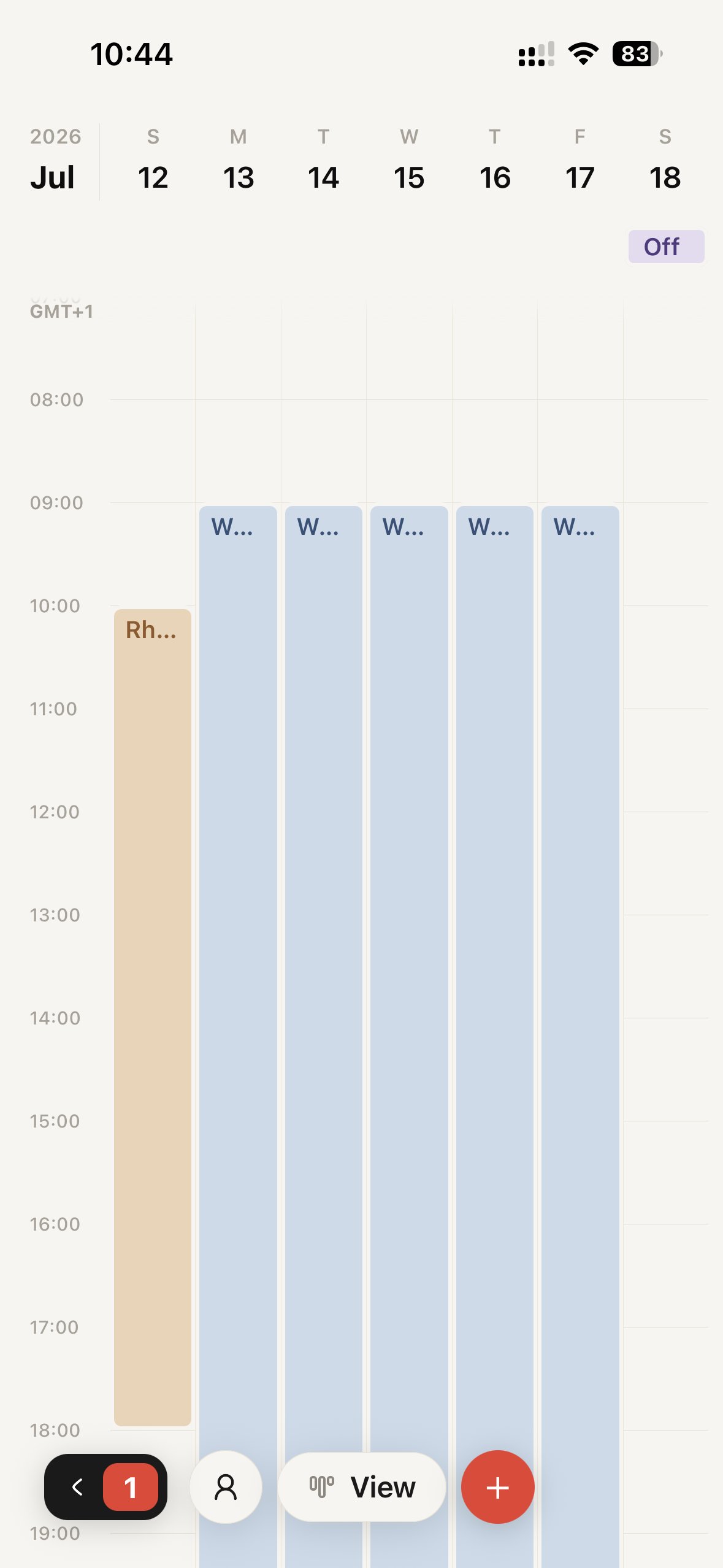
Puffin for residents is the mobile app for the people *on* your schedule. Once you publish a schedule and enable it in the app, each resident sees their own rotations and shifts as a calendar on their phone, without opening the dashboard.
It works alongside the platform. You build, publish, and enable the schedule on the web. Residents read theirs in the app.
 This is a different thing from **Puffin**, the [scheduling assistant](/puffin/overview) inside the dashboard, and from a [published share link](/view-your-schedule/publish), which is a read-only web page. The resident app shows each person their *own* calendar, signed in.
## What residents can do
Their assignments appear as day, week, and month views, color-coded by rotation. They swipe between dates and tap any shift for details.
Residents can add their own events alongside their shifts, like study time, appointments, or reminders, and edit or delete them.
Times follow the schedule's timezone by default. A resident who travels can switch the display timezone and every shift moves with it.
Each resident signs in with Apple or a one-time email code, then links to their record once with a code you provide.
## How residents get on the app
There are two halves, one on your side and one on theirs.
Put residents on the schedule, publish it, and switch on **Enable in app** so their calendars fill in.
Each resident signs in and enters a single-use link code once to connect the app to their record.
Order doesn't matter much. A resident who links after you've enabled the app sees their calendar right away. If you enable the app later, everyone who's linked gets their shifts on the next publish.
## Good to know
* **Residents only see their own calendar.** The app shows the signed-in resident's assignments, not the whole team's grid.
* **Republish keeps it current.** When the app is on, republishing pushes your latest changes to every linked resident automatically. There's no separate step.
* **Editing a shift is local.** A resident can drag or rename a shift, but the schedule details (title, start, end) are restored from the program the next time you republish. Personal touches like color and notes stick.
* **Leave and swaps still run through you.** Submitting leave requests or swaps from inside the app isn't available yet. Those stay on the dashboard for now.
This is a different thing from **Puffin**, the [scheduling assistant](/puffin/overview) inside the dashboard, and from a [published share link](/view-your-schedule/publish), which is a read-only web page. The resident app shows each person their *own* calendar, signed in.
## What residents can do
Their assignments appear as day, week, and month views, color-coded by rotation. They swipe between dates and tap any shift for details.
Residents can add their own events alongside their shifts, like study time, appointments, or reminders, and edit or delete them.
Times follow the schedule's timezone by default. A resident who travels can switch the display timezone and every shift moves with it.
Each resident signs in with Apple or a one-time email code, then links to their record once with a code you provide.
## How residents get on the app
There are two halves, one on your side and one on theirs.
Put residents on the schedule, publish it, and switch on **Enable in app** so their calendars fill in.
Each resident signs in and enters a single-use link code once to connect the app to their record.
Order doesn't matter much. A resident who links after you've enabled the app sees their calendar right away. If you enable the app later, everyone who's linked gets their shifts on the next publish.
## Good to know
* **Residents only see their own calendar.** The app shows the signed-in resident's assignments, not the whole team's grid.
* **Republish keeps it current.** When the app is on, republishing pushes your latest changes to every linked resident automatically. There's no separate step.
* **Editing a shift is local.** A resident can drag or rename a shift, but the schedule details (title, start, end) are restored from the program the next time you republish. Personal touches like color and notes stick.
* **Leave and swaps still run through you.** Submitting leave requests or swaps from inside the app isn't available yet. Those stay on the dashboard for now.