

Get the schedule ready to publish
1
Put each resident on the schedule with an email
The app only fills in calendars for people who are on the schedule. Add every resident you want on the app, and set their email. That email is how their invite reaches them.
2
Set shift times on your blocks
Events in the app need a time of day. For each block, set its shift times: the start and end for each weekday it runs. A block with no shift times falls back to a 9:00 AM to 5:00 PM event, which is rarely what you want.Overnight and on-call windows, where the end time is earlier than the start, are handled for you. The event carries over to the next morning instead of collapsing.
3
Save the schedule
Publishing builds from the last saved version, not your in-progress edits. If the header shows unsaved changes, save first, or those edits won’t reach anyone’s app.
Enable the schedule in the app
Everything residents see lives behind the Publish button in the schedule header. Open it to publish and to turn the app on.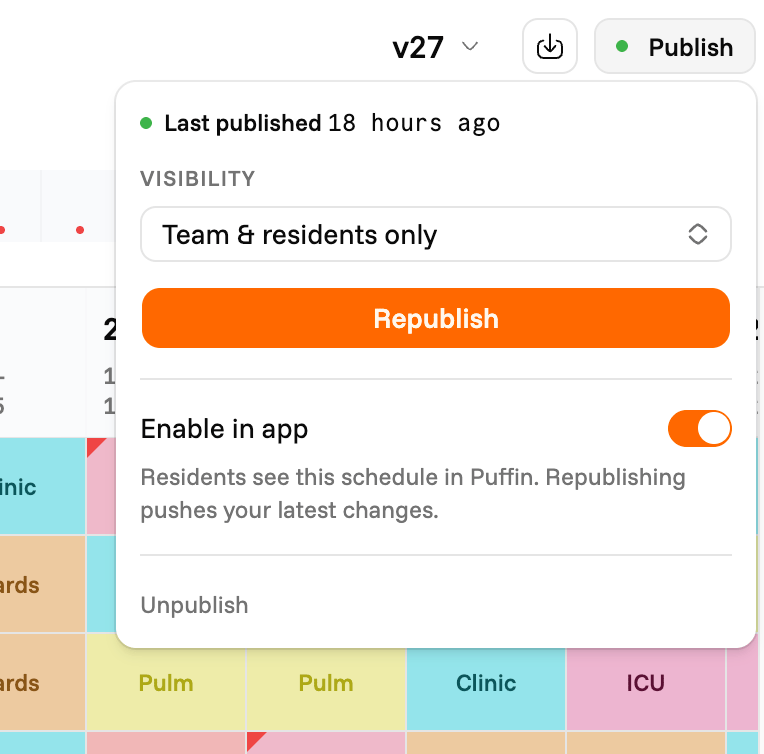
1
Open the Publish popover and publish
Click Publish in the schedule header. Choose who can view it under Visibility (your team and linked residents, or anyone with the link), then click Publish. See Publish for what visibility means.
2
Turn on 'Enable in app'
In the same popover, switch on Enable in app. This pushes each linked resident’s assignments to their Puffin calendar, expanded day by day from your shift times. The switch takes effect the moment you flip it.
Enable in app is off until you turn it on, and you can only turn it on once the schedule is published. A published schedule is visible to your team on the web whether or not the app is on. The app is a separate switch.
Keep the app up to date
Once a schedule is enabled, Republish keeps the app in sync. Whenever you change the schedule, save it and click Republish, and every linked resident’s calendar updates. There’s no separate “push to app” step. New residents are handled for you too. When someone links their account, their calendar fills in right away from the published schedule. You don’t need to republish each time a resident joins.Turning the app back off
Switch Enable in app off and the schedule stops syncing to phones. Shifts already on residents’ calendars stay put, so nobody’s calendar suddenly empties. Future changes simply won’t reach the app until you turn it back on, at which point the next republish catches everyone up.What residents see once it’s on
- One event per working day of each assignment, titled with the rotation or block.
- Times drawn from the block’s shift times, or 9 to 5 where none are set.
- A stable color per rotation, so the same rotation always looks the same.
- Everything in the schedule’s timezone, until the resident picks a different display timezone on their device.